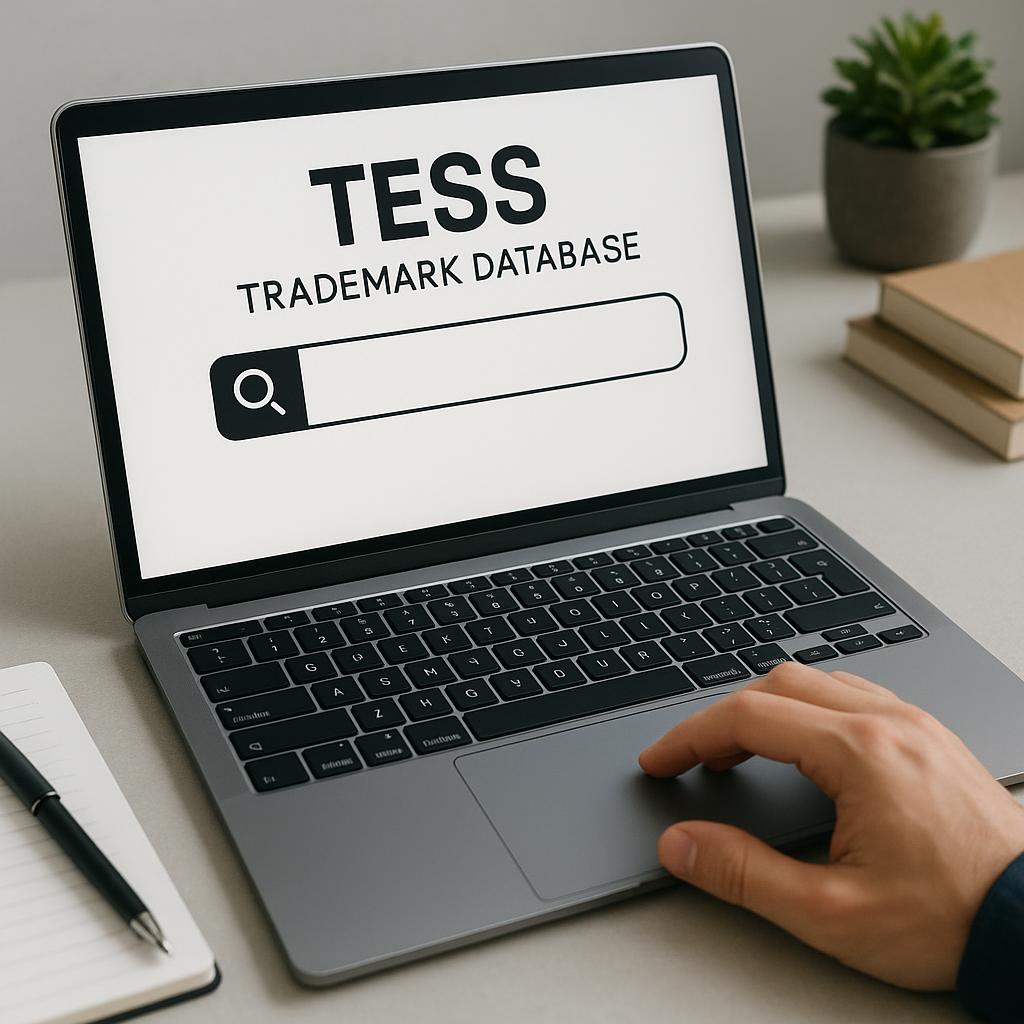
How to Search the USPTO Trademark Database Step-by-Step (2025 Guide)
Advertisement
Before you spend money on branding, a logo, or a trademark application, you need to know whether your name or mark already belongs to someone else. The USPTO's trademark database is the official place to find out — and it's completely free to use.
This guide walks you through exactly how to use it, what your results mean, and what a clean search does (and doesn't) actually confirm.
What Happened to TESS? (Important Update)
Advertisement
If you've searched for trademark help recently, you may have seen references to TESS — the Trademark Electronic Search System. Here's what you need to know: TESS was retired on November 30, 2023.
The USPTO replaced it with a new cloud-based system simply called Trademark Search, available at tmsearch.uspto.gov. Most guides on the web still describe the old system. This one doesn't.
Need help? Our tools can help you identify potential IP conflicts before they become costly problems.Try a free scan →
The new system works differently, looks different, and uses different terminology — but the core purpose is the same: it lets anyone search millions of trademark records for free, without an account.
Advertisement
What the USPTO Trademark Database Actually Contains
The database includes:
- Live (active) trademark registrations — marks that are currently registered and enforceable
- Pending applications — marks that have been filed but not yet approved or rejected
- Dead marks — abandoned, cancelled, or expired registrations
Advertisement
It does not include state-level trademarks or common law marks (marks that have rights based on use in commerce, even without federal registration). This matters — more on that below.
Need help? Our tools can help you identify potential IP conflicts before they become costly problems.Try a free scan →
Step 1: Go to the Right URL
Open your browser and go to:
Advertisement
You do not need an account to search. The database is publicly accessible 24/7.
Step 2: Choose Your Search Mode
Advertisement
The new system has two modes:
Basic Search
The default view. Type a word or phrase into the search bar and select a field from the dropdown. This is the right starting point for most people doing an initial name check. Common field options include:
Advertisement
- Wordmark — searches the text of the trademark
- Owner — searches by the company or person who filed
- Goods & Services — searches by product/service description
For a brand name check, start with Wordmark.
Need help? Our tools can help you identify potential IP conflicts before they become costly problems.Try a free scan →
Expert Mode
Advertisement
Available by logging into a free USPTO.gov account. Expert Mode lets you build complex search queries using field tags and Boolean operators (AND, OR, NOT). This is what trademark attorneys use for thorough clearance searches.
If you're doing a preliminary check before spending money, Basic Search is sufficient. If you're about to file an application, Expert Mode gives you better coverage.
Step 3: Search for Your Name
Advertisement
Type your proposed brand name into the search bar. Start with the exact name, then run additional searches for:
Need help? Our tools can help you identify potential IP conflicts before they become costly problems.Try a free scan →
- Phonetic variations — if your name sounds like another word, search that too (e.g., "Phokus" and "Focus")
- Common misspellings — search alternate spellings your customers might use
- Plural and singular forms — "Sprout" and "Sprouts" may both be relevant
- Root words — if your name contains a common word, search that word broadly
One search is rarely enough. Trademark examiners look for marks that are confusingly similar, not just identical — so you need to think the same way.
Advertisement
Step 4: Filter by Trademark Class
Trademarks are registered by class — categories of goods and services defined by the Nice Classification system. There are 45 classes in total (34 for goods, 11 for services).
When reviewing results, pay attention to which class each result falls under. A trademark registered in Class 25 (clothing) generally doesn't block you from using the same name in Class 41 (education) — but it's not always that simple.
The USPTO can still reject an application if there's a likelihood of confusion, even across different classes, if the goods or services are considered related by consumers. When in doubt, search the classes most relevant to your business.
Advertisement
If you're unsure which class applies to you, the USPTO's ID Manual lets you search by description of your product or service.
Step 5: Understand What "Live" and "Dead" Mean
Every trademark record shows a status. Here's what the labels mean:
Advertisement
| Status | What It Means |
|---|---|
| Live | The application is active — either pending approval or fully registered |
| Dead | The application or registration has been abandoned, cancelled, or expired |
The "Live" trap
Need help? Our tools can help you identify potential IP conflicts before they become costly problems.Try a free scan →
A mark showing as Live does not necessarily mean it's registered. An application becomes "live" the moment it's filed and stays that way during the entire examination process — which can take 12–18 months. Always check the full record to see if there's a Registration Number, which confirms the mark is fully registered.
Advertisement
The "Dead" misunderstanding
Seeing a dead mark does not automatically mean you're safe to use that name. Two reasons:
- Common law rights can survive registration. If a business has been actively using a name in commerce, they may have legal rights to it even if their USPTO registration lapsed.
- Dead marks reveal why names fail. If a mark was rejected because it was too similar to another existing mark, that tells you something important about the landscape.
Advertisement
Step 6: Read the Full Record
Need help? Our tools can help you identify potential IP conflicts before they become costly problems.Try a free scan →
Click any result to open the full trademark record. Key fields to review:
- Mark drawing — shows the logo or stylization if it's a design mark
- Goods and Services — the specific description of what the mark covers
- International Class — the category it's registered under
- Status and Dates — filed, published, registered, or dead
- Owner — who holds the mark
Advertisement
If you see a mark that looks similar to yours in a related class, note the serial number and check it in TSDR (Trademark Status and Document Retrieval) for the full application history.
How to Search for Logos and Design Marks
The USPTO system cannot perform reverse image search. Searching for logos requires Design Search Codes — a numerical classification system for visual elements.
For example, if your logo features a lion, you'd look up the relevant code in the Design Search Code Manual and enter that code into the Expert Mode search.
Advertisement
This is genuinely complex and is where most self-searchers miss things. If your trademark includes a logo or design element, a design code search is essential before filing.
What to Avoid
Don't rely on a single exact-match search. Trademark protection covers similar marks, not just identical ones. If you only search your exact name and it doesn't show up, that's a starting point — not a conclusion.
Advertisement
Don't ignore pending applications. A mark that's been filed but not yet registered can still block your application. Filter results to include pending (live) marks, not just registered ones.
Don't assume a dead mark is free to take. Do a quick check: is the business still operating? Is the name still in use? If yes, proceed with caution.
Need help? Our tools can help you identify potential IP conflicts before they become costly problems.Try a free scan →
Don't skip common law. The USPTO database only covers federal registrations. Businesses that have used a name in commerce for years — without ever registering — can still have legal claim to it in their geographic area.
Advertisement
When Should You Search?
Search before you:
- Buy a domain name
- Commission a logo
- Print packaging or merchandise
- File a trademark application
- Launch publicly or announce your brand name
Advertisement
The earlier you search, the less painful a conflict will be to resolve.
Need help? Our tools can help you identify potential IP conflicts before they become costly problems.Try a free scan →
What a Clean Search Does — and Doesn't — Confirm
A clean search through the USPTO database means no identical or obviously similar federally registered or pending marks were found in relevant classes. It does not mean:
Advertisement
- You're legally clear to use the name (common law rights may still apply)
- Your application will be approved (examiners may identify conflicts you missed)
- You're protected against state trademark claims
Think of a USPTO search as your first filter, not your final answer.
Next Steps
Advertisement
Once you've completed a search:
- Document your results — screenshot or export what you found (and didn't find)
- Search phonetic and spelling variations if you haven't already
- Check your relevant trademark classes specifically
- Consider a logo design code search if your brand includes visual elements
- Search beyond USPTO — Google your name, check state databases, and scan social media handles
- Decide whether professional clearance is needed — if you're filing an application or making a major brand investment, a trademark attorney or a full clearance search report adds a layer of confidence that a DIY search can't fully provide